
Free screen capture for Windows
Capture in one keystroke. Send in one click.
ScreenTray takes screenshots, records your screen and webcam, and types what you say, all on your PC. Then it puts the file straight into an email or chat. Free, with no account, no watermark and no time limit.
- No watermark
- No time limit
- Free, no account
See it in action
The whole kit, from the tray
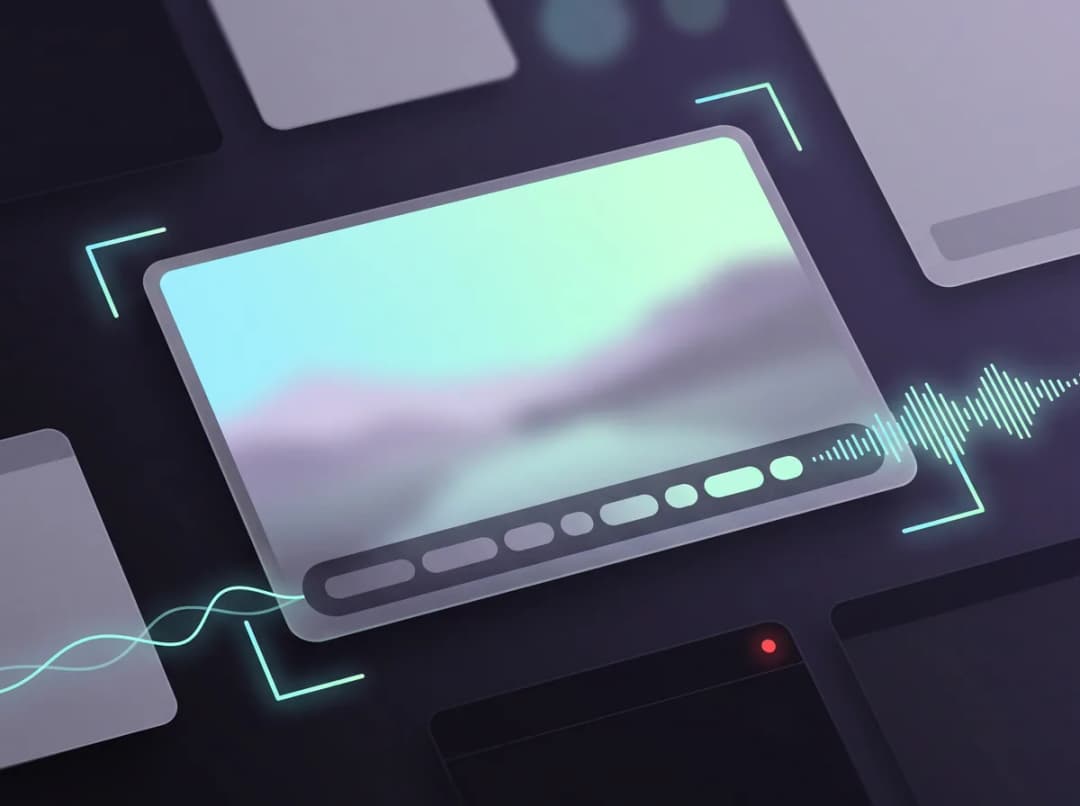
Record your screen, turn a clip into a GIF and dictate into a text box, running with sample captures.
The capture kit
Everything you need to show someone what's on your screen
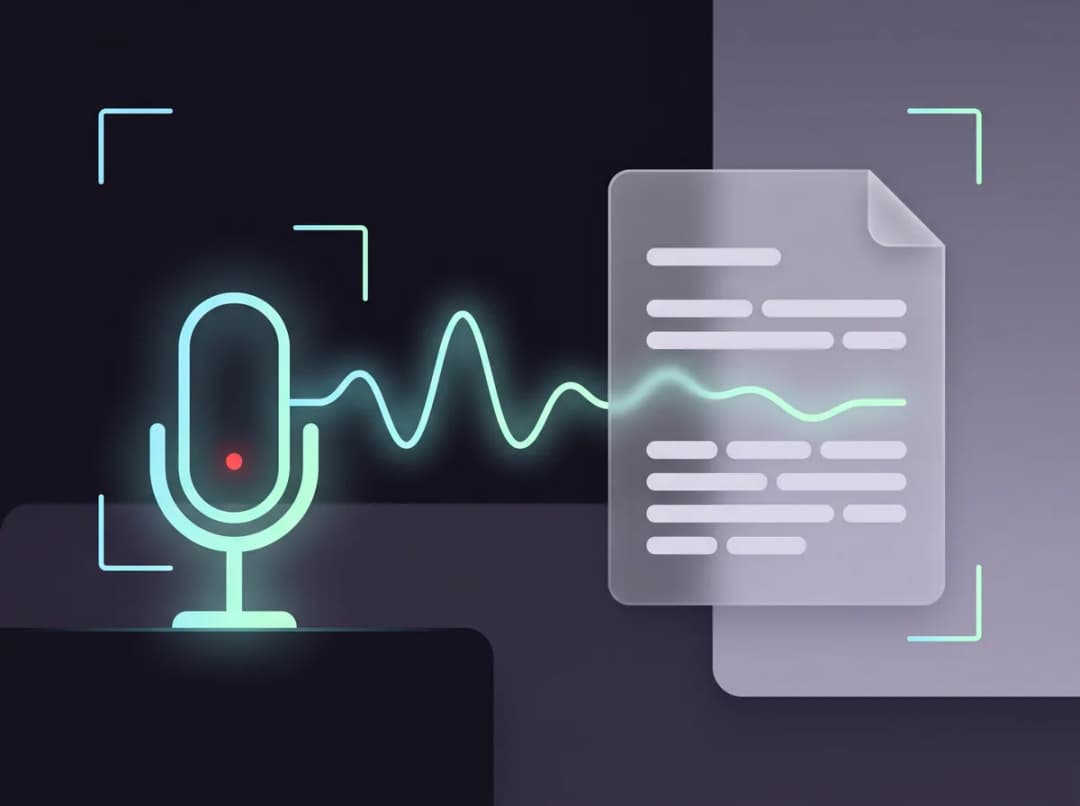
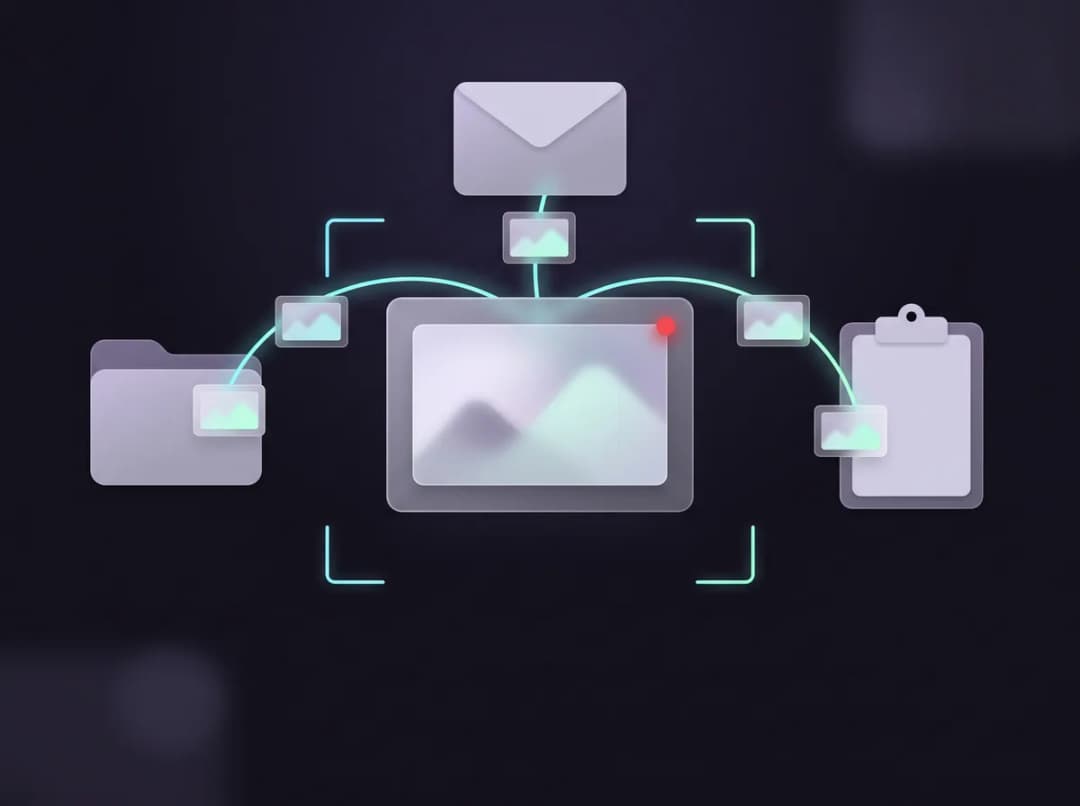
Six tools behind one tray icon and three hotkeys. Every one of them works on your PC, without an account.
Why ScreenTray
Your captures don't need to live on someone's server
Free screen recorders usually pay for themselves with an upload, an account, a watermark or a time limit. ScreenTray keeps every capture as a plain file on your PC, and makes that file easy to send.
Your files, on your PC
Every capture is an ordinary PNG or MP4 in Documents\ScreenTray. Nothing is uploaded, and uninstalling leaves the folder where it is.
Made to be sent
Copy a capture and paste it into an email or chat, or attach it to a new message in one click. Fit for email shrinks a long video under your mail limit first.
No limits to pay off
No watermark, no time limit, no monthly count and no paid tier. Record in 1080p by default, or at full resolution, up to 4K and 60 FPS.
Transparent funding
How ScreenTray stays free
While it runs, ScreenTray shares a slice of your PC’s idle internet bandwidth through Massive, our vetted partner. That is what pays for it, instead of a subscription, a watermark or uploading your captures to sell you storage. It relays other people’s ordinary web traffic. It never reads your files, your screen or what you say.
- Disclosed before anything runsSpelled out at install: you agree to it, or you don't install.
- Never your capturesIt relays other parties' traffic. Your screenshots, recordings and dictation stay on your PC.
- Only while ScreenTray runsIt runs inside ScreenTray, even from the tray. Quit the app and sharing stops.
- You can turn it offOne switch in Settings and the tray menu. New captures pause while it is off.
Turning sharing off means ScreenTray won’t start new screenshots, recordings, webcam recordings or dictation. That is the trade, and the app says so plainly rather than letting you find out: the Library, Screen, Camera and Dictation pages tell you sharing is off. Everything you already captured stays in your captures folder as ordinary files, and a recording already running keeps going until you stop it. While sharing is on, nothing is metered or held back. Don’t want to take part at all? Uninstalling ends it, and your captures folder stays.
Read exactly how it's funded- Code-signed installerSigned by Clearware, LLC
- Nothing is uploadedCaptures stay as files on your PC
- Offline dictationSpeech becomes text on your PC
- No accountNothing to sign up for
How it works
From keystroke to inbox in three steps
No upload, no link to wait for, and no hunting for the file in Explorer.
- 1
Install it
Run the signed installer. A short card shows your three hotkeys, Alt+S, Alt+Q and Alt+D, each with a Change button in case one clashes with an app you use.
- 2
Press Alt+S
Drag over an area, click a window or press Enter for the whole screen. Then choose Screenshot or Record video, with your mic, your PC's sound or your webcam.
- 3
Send it
A small card appears above the tray. Copy, Email or Share from there, or drag the thumbnail straight into a message.
The fine print, up front
What ScreenTray can't do, and what it asks of you
No reviews to show yet, and we won't invent any. Here are the limits instead, so nothing surprises you after you install.
Windows only
ScreenTray runs on 64-bit Windows 11, and on Windows 10 on a best-effort basis. There is no Mac, Linux or phone version.
Sharing off means no new captures
ScreenTray is paid for by sharing idle bandwidth through Massive. Turn sharing off and new screenshots, recordings and dictation won't start, and the capture pages wait for it. Your files stay in your captures folder.
Protected video records as black
Windows blanks out copy-protected playback, such as streaming films, for every capture app. ScreenTray doesn't work around it.
Videos record one screen at a time
A recording covers one monitor, one window or an area on one monitor. Screenshots can span several monitors; videos can't.
Smart cleanup is big and optional
Smart dictation cleanup is a separate download of about 1.1 GB. It needs at least 8 GB of memory, 3 GB of free disk and a CPU with AVX2, and stays off if a speed test shows it is too slow.
Admin windows get the clipboard
Windows won't let an ordinary app type into a window running as administrator. There, dictation copies your text instead and asks you to press Ctrl+V.
The longer versions: how it's fundedwhat we collect
Get ScreenTray
Your next screenshot is one keystroke away
Install it, press Alt+S, and send what you captured. It waits in the tray, ready for the next one.
Windows 10/11 · Free · No account
Uninstalling keeps your captures folder, so nothing you made goes with it.
FAQ
Questions, answered straight
The things people ask before they install a free screen recorder.